Ai Love Story Video Editing – Friends, ever since AI content has been used on social media, people have been experimenting with various creative editing techniques. Especially, photos and videos created using AI are going viral on social media, with a very realistic look. Friends, AI videos created using AI are also going viral, and they look exactly like real videos. People are easily creating such videos because it’s very easy to create them using AI. Today, in this article, I’ll show you how to make this viral couple AI video editing. With its help, you can now create a video of yourself with your girlfriend, created with AI. So, friends, by reading this article, you can easily create this viral AI video.
About This Ai Love Story Video Editing
First, let me tell you about this video editing. Friends, in this video editing, you’ll see that it was created using AI. A video plays, showing a boy, whom you’d generate with your own face, standing on the roadside, looking at his watch, waiting for someone. Then, a car passes by, and the next scene shows a girl approaching from the other side, possibly your girlfriend or partner, coming towards you. At this point, the video plays in slow motion, and a close-up of the girl’s face is shown. This is a realistic scene, using the sunset golden hour effect for a realistic look. You can create this video using a prompt. I’ll explain the process further.
What You Need To Create This Ai Video?
To create this video editing, you don’t need much. You just need an image, a prompt, and an AI tool. First, you need to prepare a photo. Take a photo of yourself and your girlfriend in which your faces are clearly visible. After that, you’ll need a prompt to create a realistic AI video with the entire scene. The main function of the prompt is to ensure all the details are neatly added. You’ll find the video prompt below in this article. Copy it. Now, you need to perform the final task using an AI tool. You can use Google Flow AI to create this video by adding the prompt and photo. Using Google Flow is easy; you’ll find the process in the next paragraph.
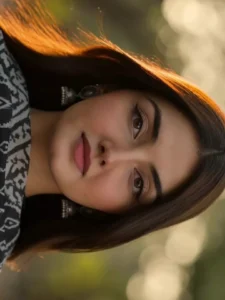
Video Prompt –
Cinematic 4K photorealistic video, 15 seconds, natural golden hour light. Wide
tree-lined Bangalore city boulevard, tall rain trees overhead canopy, warm
amber sunlight through leaves, dappled gold on tarmac, ambient city sounds.
BEAT 1 — 0:00 to 0:04: Young Indian man from @Image1 stands on near-side
footpath beside a black bike, facing camera. Black hair, clear glasses, dark
brown linen button-up shirt white buttons chest pocket sleeves rolled, cream
wide-leg pleated trousers, white sneakers, silver watch left wrist from
@Image3. Head slightly down casually checking his watch, relaxed and
completely unaware. Black Porsche 911 GT3 enters from left at road speed —
horn blares once — car sweeps through foreground in shallow focus blur
blocking full road view for one second, powerful wind whoosh as it passes.
BEAT 2 — 0:04 to 0:07: Car clears frame — slow motion begins instantly. On
the opposite footpath directly across, a young Indian woman from @Image2
steps off the far kerb beginning to cross — walking straight toward camera.
Car's wind wake hits her at this exact moment — straight dark hair explosively
lifting and blowing toward camera. Black fitted full-sleeve top, red bandhani
wave-print tiered maxi skirt billowing forward around her legs, black white ikat
dupatta with tassels flying toward camera, silver oxidised necklace and
bangles catching golden light, flat kolhapuri sandals from @Image4. She walks
straight forward facing camera, eyes ahead, calm natural expression,
completely unaware of him on the opposite pavement. BEAT 3 — 0:07 to 0:10:
Cut to tight front close-up of the man's face. Head lifted from watch, eyes
wide and still fixed straight across the road, mouth barely parted, glasses
catching soft golden light. Pure quiet stunned stillness. First sight. No theatrics.
Completely natural. BEAT 4 — 0:10 to 0:12: Cut back to her — slow motion —
mid-road walking straight toward camera, red skirt swaying, dupatta tassels
drifting, hair gradually settling. She never glances toward him. Fully in her own
world. BEAT 5 — 0:12 to 0:15: Slow motion close-up of her beautiful face.
Straight dark hair softly blowing and settling, warm amber light falling across
her features, soft skin, dark expressive eyes looking straight ahead, gentle
natural expression, silver earrings catching light. Quiet effortless beauty. She
still does not know. Shallow depth of field, warm golden bokeh tree canopy
behind. Wind sound fading to silence. Anamorphic lens, natural bokeh, no
filters, no music. Diegetic sound only — car horn, wind whoosh, ambient city
hum, fading breeze. Pure documentary realism. No jump cuts.
How To Generate Your Video
Creating this AI bike video is very simple. First, click the “Generate Video” button to open the Flow AI website and sign in with your Google account. Create a new project, select the Frame to Video option, and upload your bike photos. Then copy the prompt provided in this article and paste it into the prompt box. Finally, click Generate and wait a few moments while the AI creates your video. Once it’s ready, preview the result and download it in high quality.
Conclusion
So, this is how you can easily create this viral AI video editing technique for yourself. This article provides you with video prompts and guides on how to create this AI video. I hope you understand. Remember, you should only use your own image and your partner’s image. You should not use anyone else’s image without permission. I hope you enjoyed this article and will now be able to create this AI video for yourself. Please share this article.